Skip to content
How to Fix WooCommerce Payment Failed Error (Complete Troubleshooting Guide)
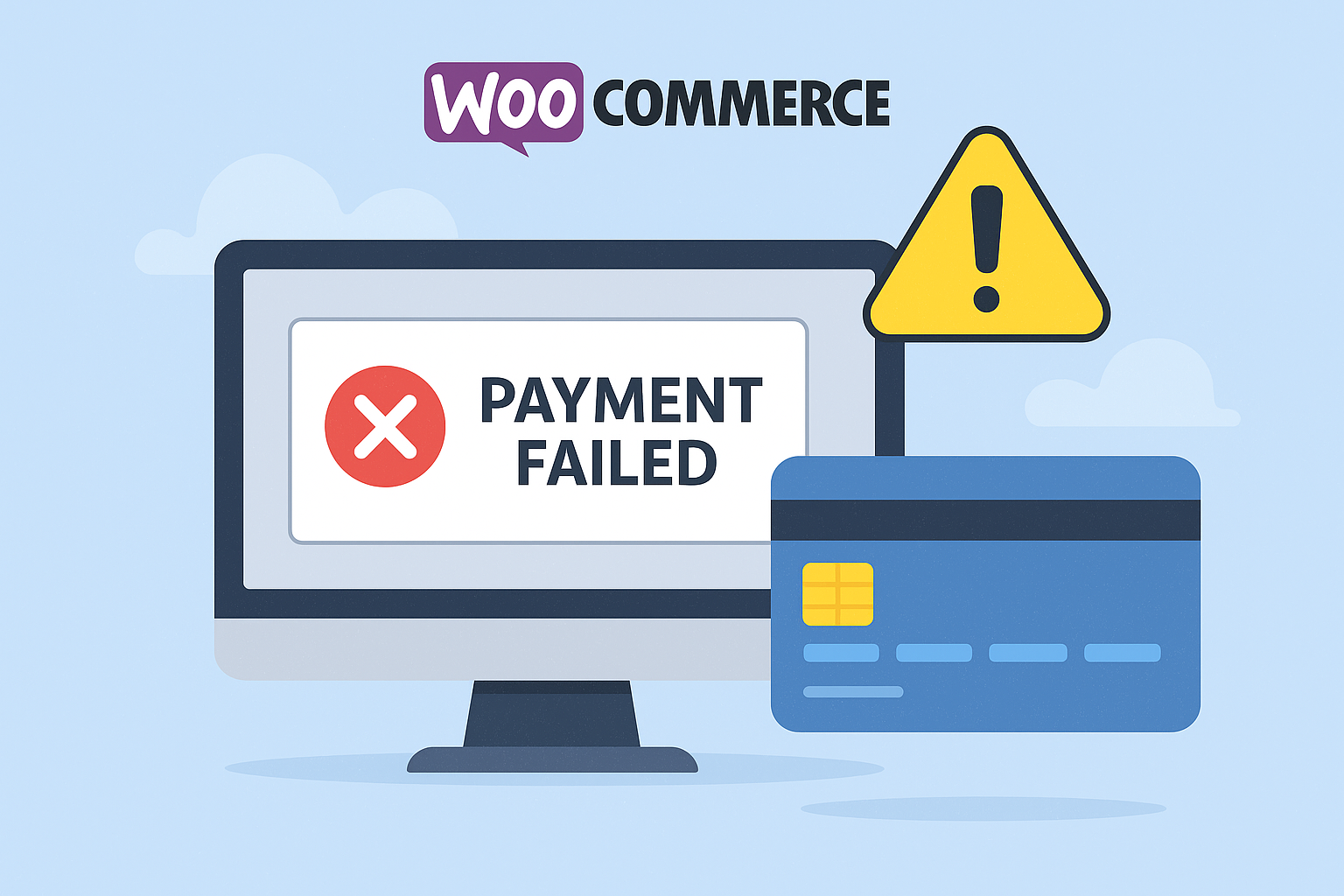
Why WooCommerce Payment Errors Hurt Your Store?
A failed payment on WooCommerce doesn’t just interrupt a transaction—it damages trust, increases cart abandonment, and directly impacts revenue. When customers reach the checkout stage, they expect a smooth and secure payment experience. Any error message such as “Payment Failed,” “Transaction Declined,” “Order Cannot Be Processed,” or “Gateway Error” immediately discourages buyers from trying again.
The problem is common, but the good news is that most WooCommerce payment failures can be fixed quickly once you identify the underlying cause. Whether you are using Stripe, PayPal, Fawry, Mada, STC Pay, Meeza, or any other payment gateway, this troubleshooting guide will help you solve the issue and restore smooth transactions.
Understanding the WooCommerce Payment Failed Error
A “Payment Failed” message typically indicates that WooCommerce could not process the transaction due to an issue in one of three areas:
- Customer-side issues (card, banking, browser, device)
- Website issues (plugin conflict, outdated theme, incorrect checkout settings)
- Payment gateway issues (API keys, credentials, server blocks, currency mismatch)
To fix the problem properly, you need to diagnose the source. The sections below break down every possible cause and provide actionable solutions.
Common Causes of WooCommerce Payment Failed Errors
1. Incorrect Payment Gateway Configuration
This is the most common reason for failure. When API keys or merchant credentials are entered incorrectly, WooCommerce cannot communicate with the payment gateway.
Possible triggers:
- Wrong API key
- Incorrect secret key
- Live credentials entered in test mode
- Mismatched webhook or callback URL
- Disabled payment gateway in WooCommerce settings
Solution:
- Recheck your API credentials
- Ensure keys match the “live” or “test” mode you are using
- Update the webhook/callback URL exactly as the gateway requires
- Enable the payment gateway under WooCommerce → Settings → Payments
2. Outdated WordPress, Theme, or WooCommerce Plugin
Older versions may fail to support newer payment gateway updates.
Solution:
- Update WordPress to the latest version
- Update WooCommerce
- Update your theme
- Update your payment gateway plugins
Outdated plugin files often cause communication failures.
3. Plugin Conflicts
When multiple plugins modify WooCommerce checkout behavior, conflicts occur, resulting in payment issues.
Common conflicting plugins include:
- Security plugins
- Optimization/cache plugins
- Multi-currency plugins
- Custom checkout field plugins
- Outdated payment plugins
Solution:
- Temporarily disable all plugins except WooCommerce
- Enable the payment gateway plugin
- Test checkout
If payments start working, reactivate plugins one-by-one to identify the conflict.
4. Cache and CDN Interference
Caching plugins or CDNs like Cloudflare often block dynamic checkout scripts or redirect the checkout URL.
Solution:
- Exclude WooCommerce pages from caching
- Cart
- Checkout
- My Account
- Purge all cache
- Disable Cloudflare “Rocket Loader”
These steps restore proper script loading on checkout.
5. Currency or Country Mismatch
Some payment gateways only support certain currencies or customer regions.
For example:
- Fawry → supports EGP
- STC Pay → primarily supports SAR
- Stripe → does not support all currencies
- PayPal → may reject unsupported country accounts
Solution:
Verify that:
- Currency is supported
- Country is supported
- Gateway is enabled for the selected location
6. Server-Side Issues
Hosting limitations can cause payment failures due to:
- Firewall blocks
- SSL misconfiguration
- Disabled PHP modules
- Slow cron jobs
- Limited server resources
Solution:
Ask your hosting provider to verify:
- SSL is active and valid
- Webhooks are not blocked
- Payment ports are open
- PHP version is updated (8.0 or above)
- No firewall blocking gateway IPs
7. Payment Gateway Server Problems
Sometimes the issue is not your website. Gateways like Stripe, PayPal, and Fawry may experience temporary outages.
Solution:
Check the gateway status page:
- Stripe Status
- PayPal Status
- Fawry Developer Portal
- Tap Status
- Paymob Status
If the service is down, wait until it is restored.
8. Customer-Side Issues
Customers may face errors due to:
- Insufficient bank funds
- Expired card
- Wrong OTP
- Bank restrictions
- Browser extensions blocking scripts
Solution:
Ask customers to try:
- Another card
- Another device
- A different browser
- Clearing cookies
- Re-entering OTP
Step-by-Step Troubleshooting Guide to Fix Payment Failures
This structured troubleshooting plan helps you resolve issues quickly.
Step 1: Test in Sandbox Mode
Switch payment gateway to test/sandbox mode and run a sample transaction.
If the test payment works, the issue is likely:
- API credentials
- Live keys
- Payment blocks
- Currency mismatch
Step 2: Check WooCommerce Logs
Navigate to:
WooCommerce → Status → Logs → Select Payment Gateway Log
Look for messages like:
- “Invalid API Key”
- “Authentication Error”
- “Webhook Signature Mismatch”
- “Currency Not Supported”
- “Callback Failed”
This helps pinpoint the issue immediately.
Step 3: Verify API Keys and Callback URLs
Every gateway has its own requirements. For example:
Fawry
- Merchant Code
- Secure Key
- Signature Formula
- Callback URL
Stripe
- Publishable Key
- Secret Key
- Webhook Secret
PayPal
- Client ID
- Secret
- Webhook Endpoint
Tap / Paymob / Hyperpay / STC Pay
Follow the same key validation steps.
Step 4: Disable Conflicting Plugins
Disable plugins such as:
- Cache plugins
- Security plugins
- Currency switchers
- Checkout customizers
Then test checkout again.
Step 5: Test with a Default Theme
Switch to Storefront or Twenty Twenty-Four.
If payment works, your theme might be loading outdated checkout templates.
Step 6: Purge Server Cache & CDN Cache
Clear:
- Browser cache
- Cloudflare cache
- Server-level caching
Then test again.
Step 7: Contact Payment Gateway Support
If logs show gateway-side errors, open a support ticket with your gateway provider.
Provide:
- Order ID
- Error message
- Log report
- Checkout URL
They can identify whether the request reached their server.
Advanced Fixes for Persistent Payment Errors
1. Regenerate Webhook Endpoints
Many gateways require correct webhook verification.
Broken or outdated webhooks can prevent order status changes.
2. Fix SSL and Mixed-Content Errors
Payment gateways block insecure checkout pages.
Install SSL and force HTTPS sitewide.
3. Increase PHP Memory Limit
Low memory causes checkout failures.
Set memory to:
define(‘WP_MEMORY_LIMIT’, ‘512M’);
4. Update Payment Gateway Settings After Migration
If your site was migrated, update:
- Callback URLs
- Webhook paths
- API keys
Many merchants forget this step after switching hosting.
How Cross Nine Helps Fix WooCommerce Payment Failures?
At Cross Nine, we provide complete WooCommerce payment troubleshooting and integration services. Our team helps you:
- Fix payment gateway errors
- Configure API keys
- Resolve callback and webhook issues
- Remove plugin conflicts
- Optimize checkout speed
- Add Fawry, Stripe, PayPal, STC Pay, Tap, Paymob, and more
- Secure your checkout flow
- Improve conversion rate with optimized payment UX
Whether you run a local Egyptian store using Fawry, a Saudi store using Mada/STC Pay, or a global store using Stripe, Cross Nine can help you resolve errors professionally and keep payments running smoothly.
Frequently Asked Questions (Updated for 2025)
Why is WooCommerce showing a “payment failed” message?
It usually means a configuration issue, plugin conflict, or payment gateway authentication error. It can also be due to customer-side banking issues.
How do I check what caused a payment to fail?
Go to WooCommerce → Status → Logs and select your gateway logs to find the exact error message.
Why does Stripe payment fail in WooCommerce?
Usually due to incorrect API keys, outdated webhook URLs, or security plugins blocking Stripe scripts.
Why does Fawry Payment fail in WooCommerce?
Common causes include wrong secure key, invalid signature formula, incorrect callback URL, or live mode misconfiguration.
Can caching plugins cause payment errors?
Yes. They often block dynamic scripts. Exclude checkout, cart, and account pages from caching.
Why is my order not updating after payment?
Your webhook or callback URL might not be working. Update it according to your payment provider’s instructions.
How do I fix PayPal failed payment?
Check your API credentials, enabled currencies, and webhook settings. Also verify that PayPal is operating normally.
Conclusion
WooCommerce payment failures are frustrating, but they are usually easy to fix if you follow a structured troubleshooting approach. By checking your gateway configuration, updating plugins, clearing cache, and reviewing error logs, you can quickly restore normal payment operations.